
• Download data from 3rd party platform.
• Import the attendee profiles including, their name, organisation, job title and badge reference
• Log into CMS > Libraries > People > Import/Export tab and download the example template
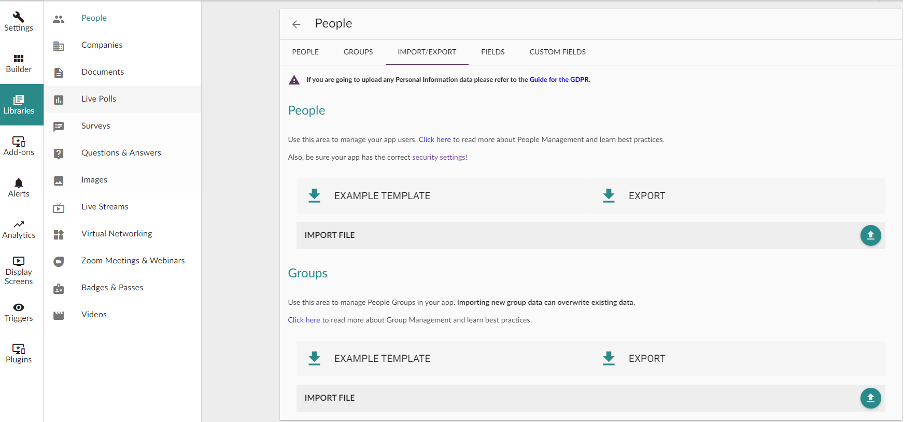
• Populate the template sheet with the information from the 3rd party data
• Then import the completed file into CMS
• During the import, you may get an error message if an attendee already exists in the app or there is missing information from your template sheet
• Go to the people tab and you should be able to see all the imported attendees
• You can search for a specific attendee or click “Edit” on any one of them to check and ensure that relevant attendee information is imported
• Check that the QR code ID field is populated with the correct 3rd party code
• Click Save
NOTE: You can also export CMS QR Codes into a 3rd party platform. Please refer to the specific platform’s own guidance.


