Discover our extensive Knowledge Hub to help your event run smoothly.
<span data-mce-type="bookmark" style="display: inline-block; width: 0px; overflow: hidden; line-height: 0;" class="mce_SELRES_start"></span><span data-mce-type="bookmark" style="display: inline-block; width: 0px; overflow: hidden; line-height: 0;" class="mce_SELRES_start"></span><span data-mce-type="bookmark" style="display: inline-block; width: 0px; overflow: hidden; line-height: 0;" class="mce_SELRES_start"></span>Click to watch with captions & transcription.
You should receive an email from the organiser with a link to access the lead capture system.
Tap the link to launch – This is an easier process if the link is opened on the device used for scanning – ie your smartphone.
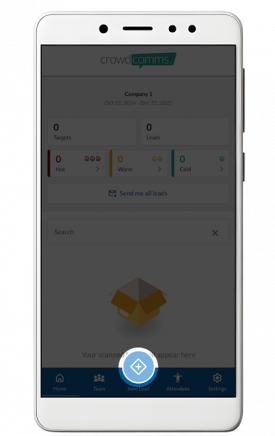
Tap ‘New Lead’ at the bottom of the screen:
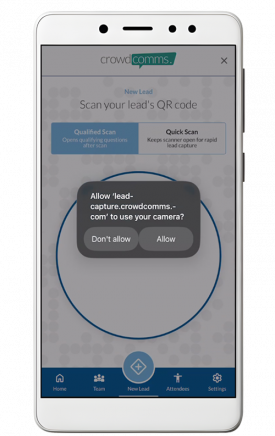
If this is the first time you are scanning, you may have to allow access to your device camera.
Tap ‘Allow’ in the pop-up.
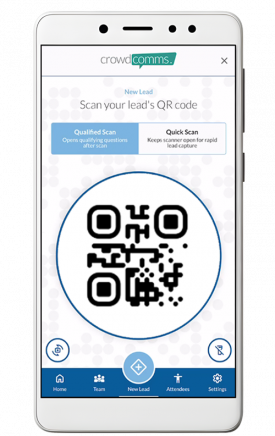
Scan the QR code on the delegates badge.
You can change the scan ‘mode’ using the tabs at the top of the screen.
You can change which camera you are using (Front/Back – Default is Back) using the rotation button on the bottom left of the screen.
You can switch on the flash if required using the flashlight button on the bottom right of the screen (Default is Off).
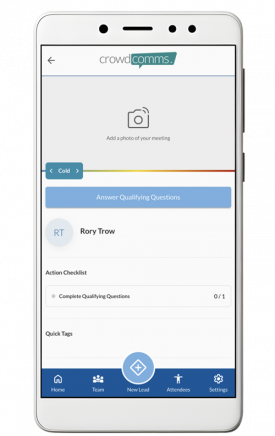
When a lead is successfully scanned, you will be presented with the details screen to update.
From here you can complete Qualifying Questions, complete Actions, apply Tags, rate the lead and attach photos.
Qualifying questions, Tags and Actions can be setup in advance by the Lead Capture Administrator from your organisation.
Whatever your vision for your next virtual, hybrid or in-person event, we can help.
Total Results
No Record Found