This article explains how to build and manage your agenda using the Crowdcomms platform. You will learn how to create modules, add sessions, and customize them for an engaging attendee experience.
Go to dashboard.crowdcomms.com #
1. Start Agenda Creation #
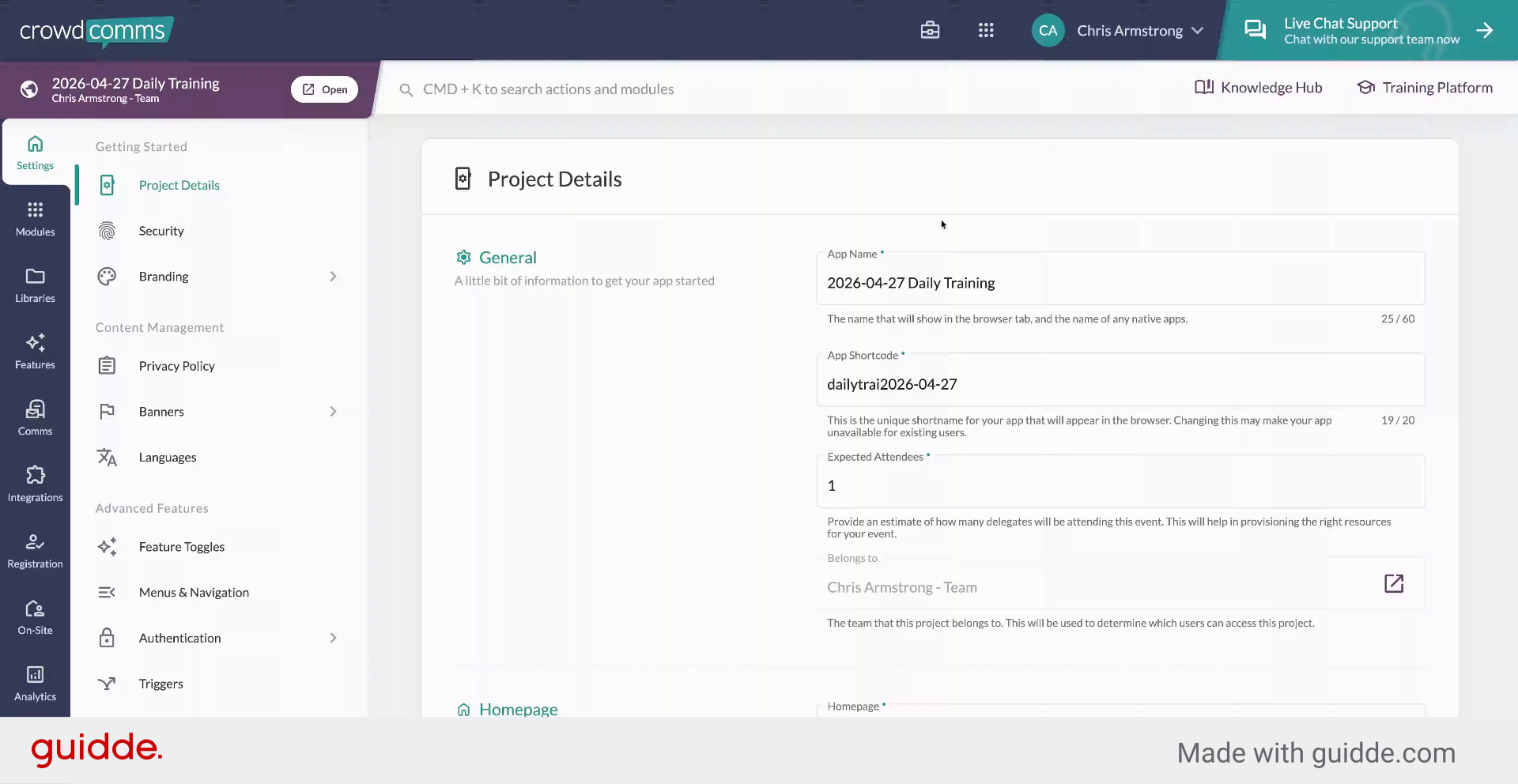
We’re going to look today at how to build your agenda in the Crowdcoms platform. We’ll start by clicking on the modules area, then create a new module and pick agenda from the options.
2. Create New Module #
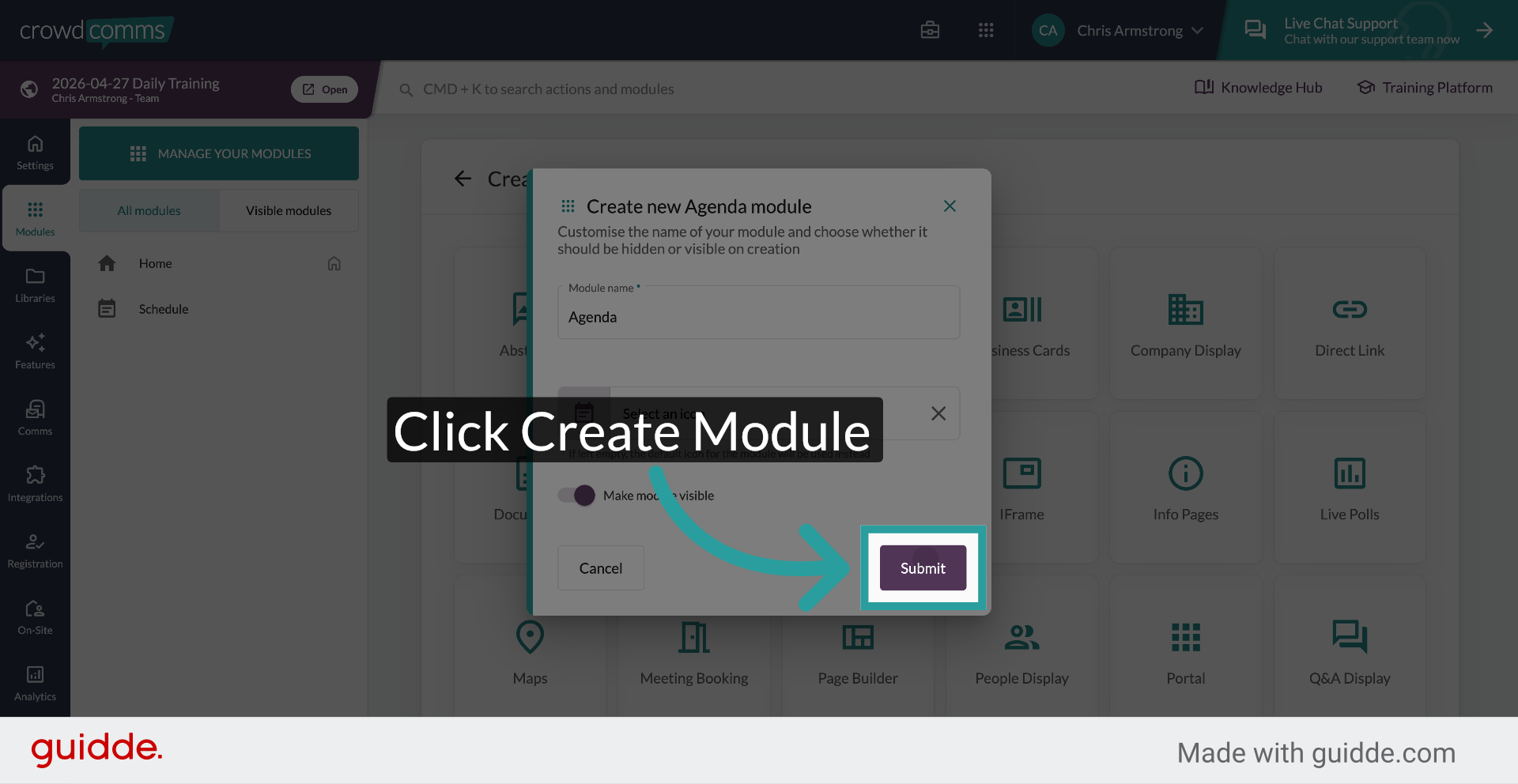
Click the Create Module button to begin setting up a new module within the Crowdcomms platform for your agenda.
3. Add New Session Details #
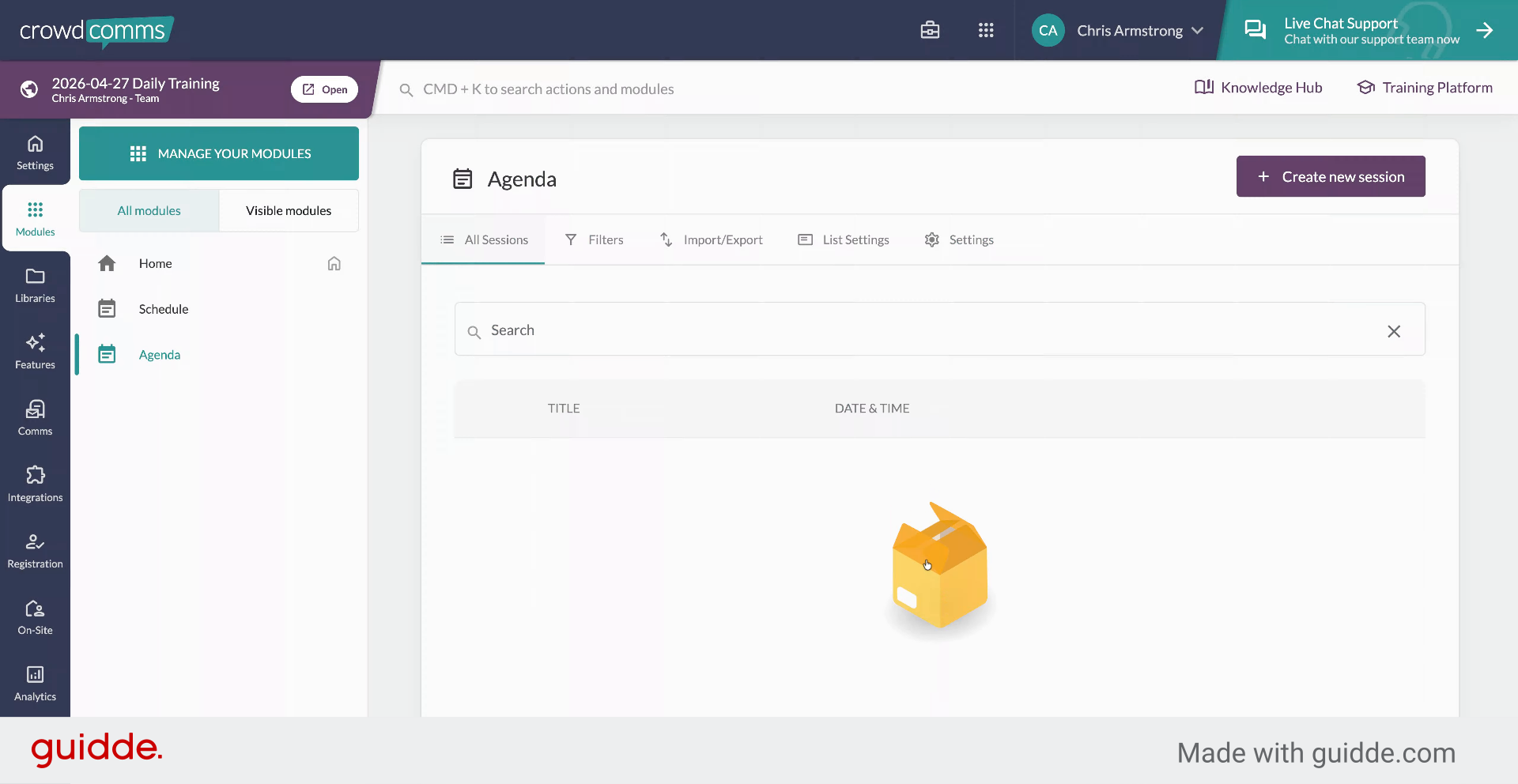
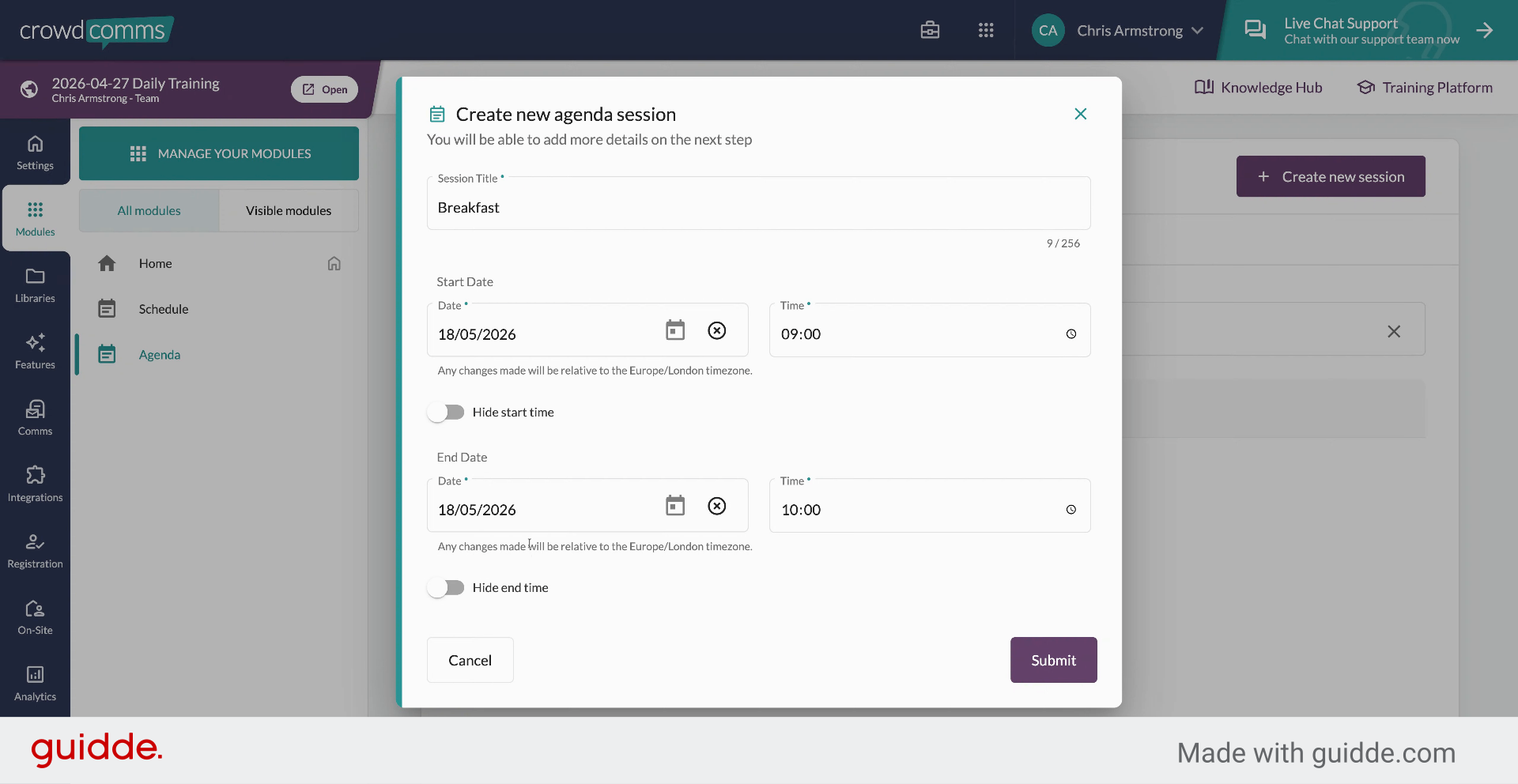
Once the agenda module is created, add new sessions by entering session details such as title, start and end dates, and times using 24-hour time pickers.
4. Set Session Time Visibility #
Start or end times can be visible to users, but must be input into the admin system. Leave both times visible and press submit to save.
5. Confirm Session Creation #
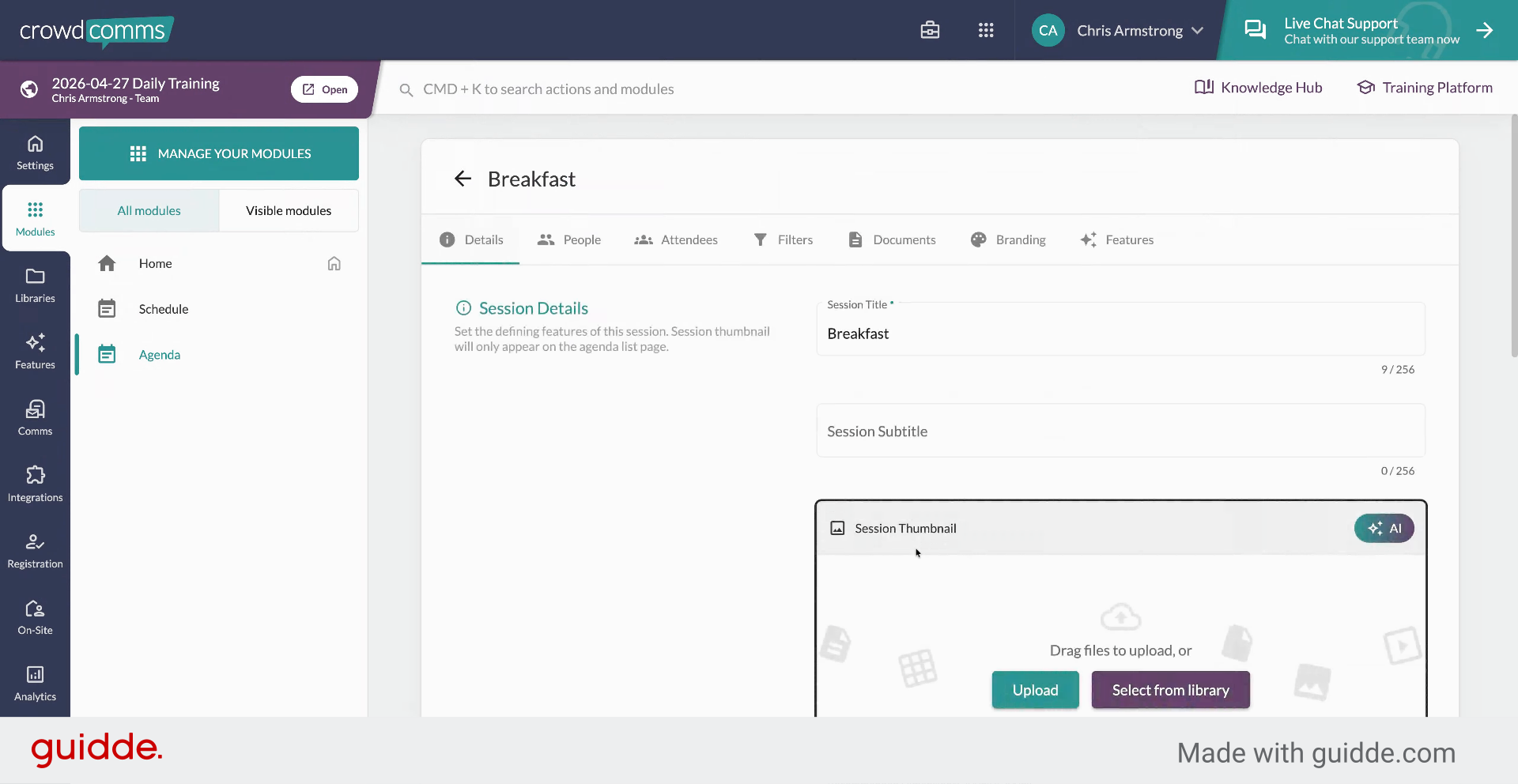
A new session named breakfast has been created successfully and is now part of your agenda.
6. Edit Session Details and People #
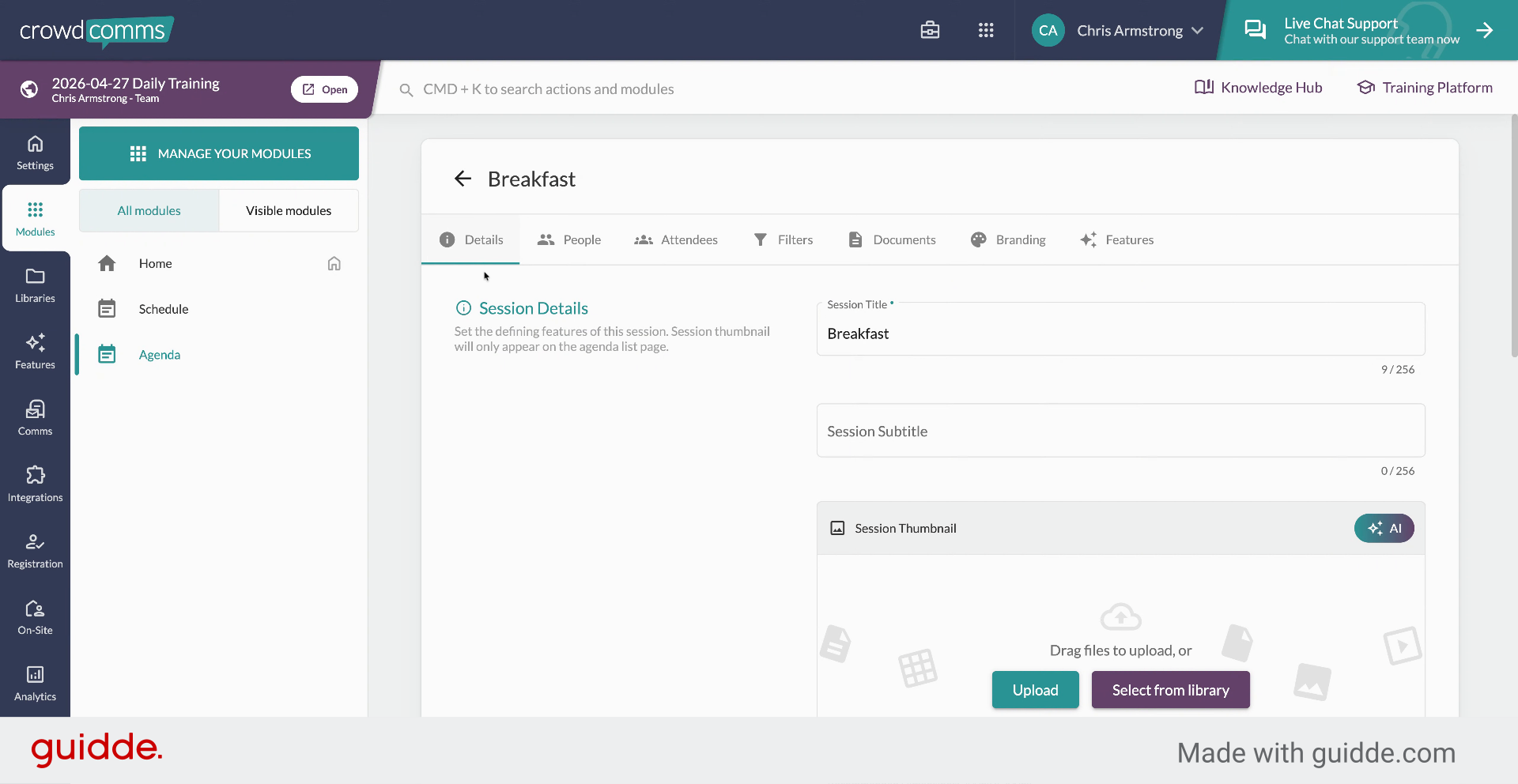
Explore the session tabs to edit details like title, subtitle, thumbnail, dates, location, and description. Add speakers from the people library, manage attendees and privacy, and categorize sessions with filters.
7. Open Agenda Filters #
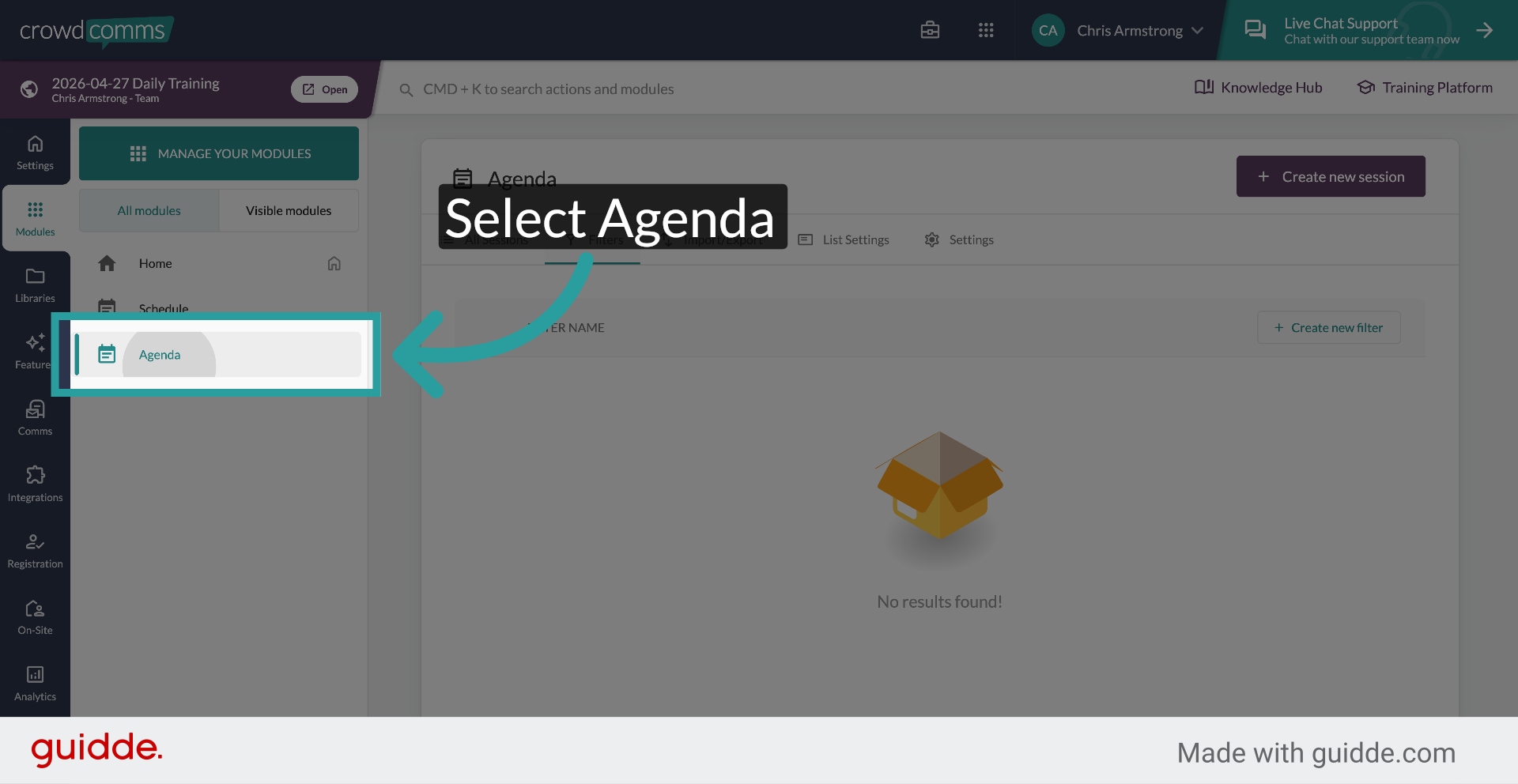
Click the Agenda tab to access filters that help categorize sessions for easier browsing by users.
8. Use Session Categorization Filters #
Categorize your sessions using filters so users can easily narrow down sessions when browsing the agenda.
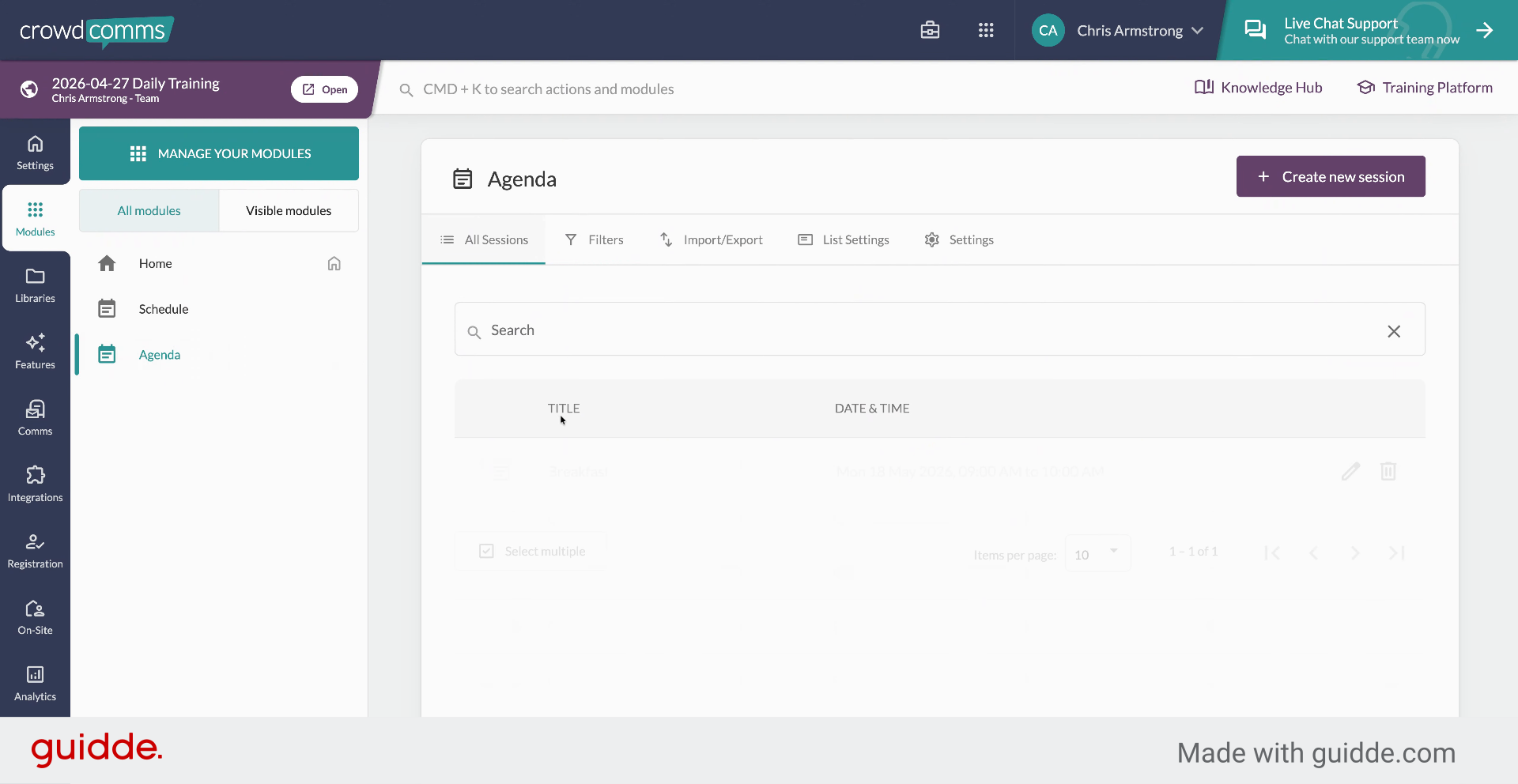
9. Access Session Documents #
Click the Documents tab to add PDFs or other handouts to your sessions, making them accessible to attendees.
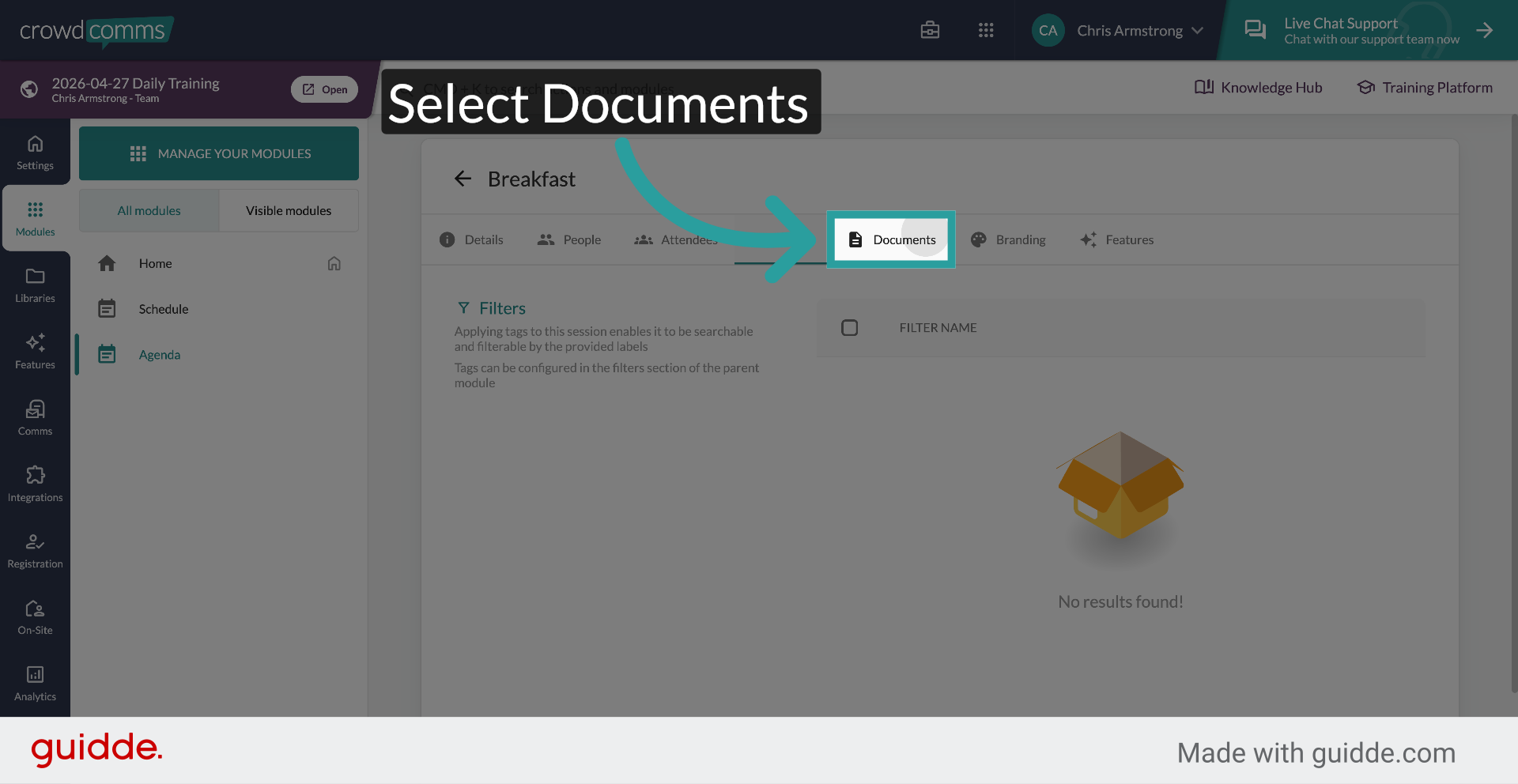
10. Add Session Documents #
The Documents tab lets you upload materials such as PDFs or handouts for session participants to access.
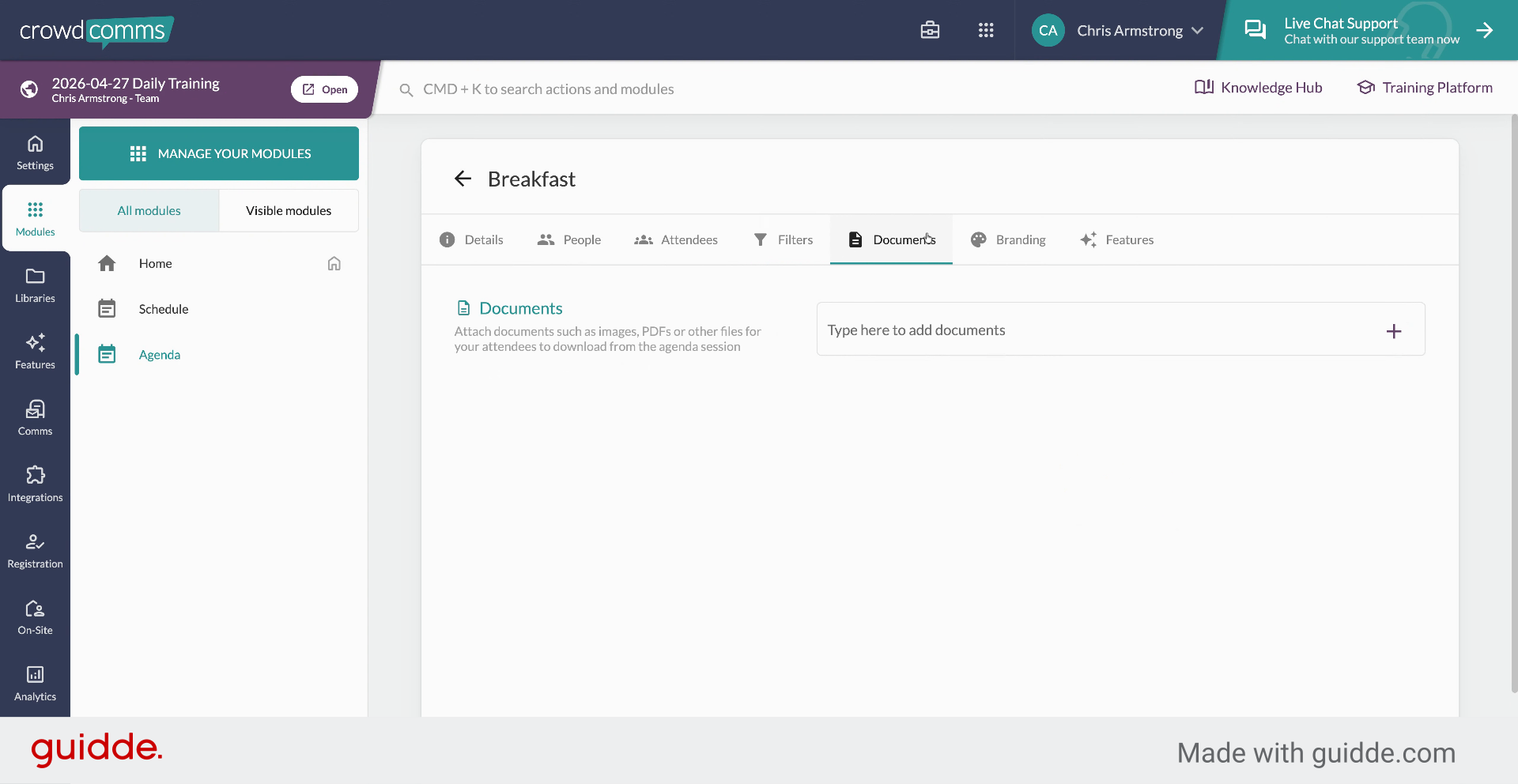
11. Open Branding Options #
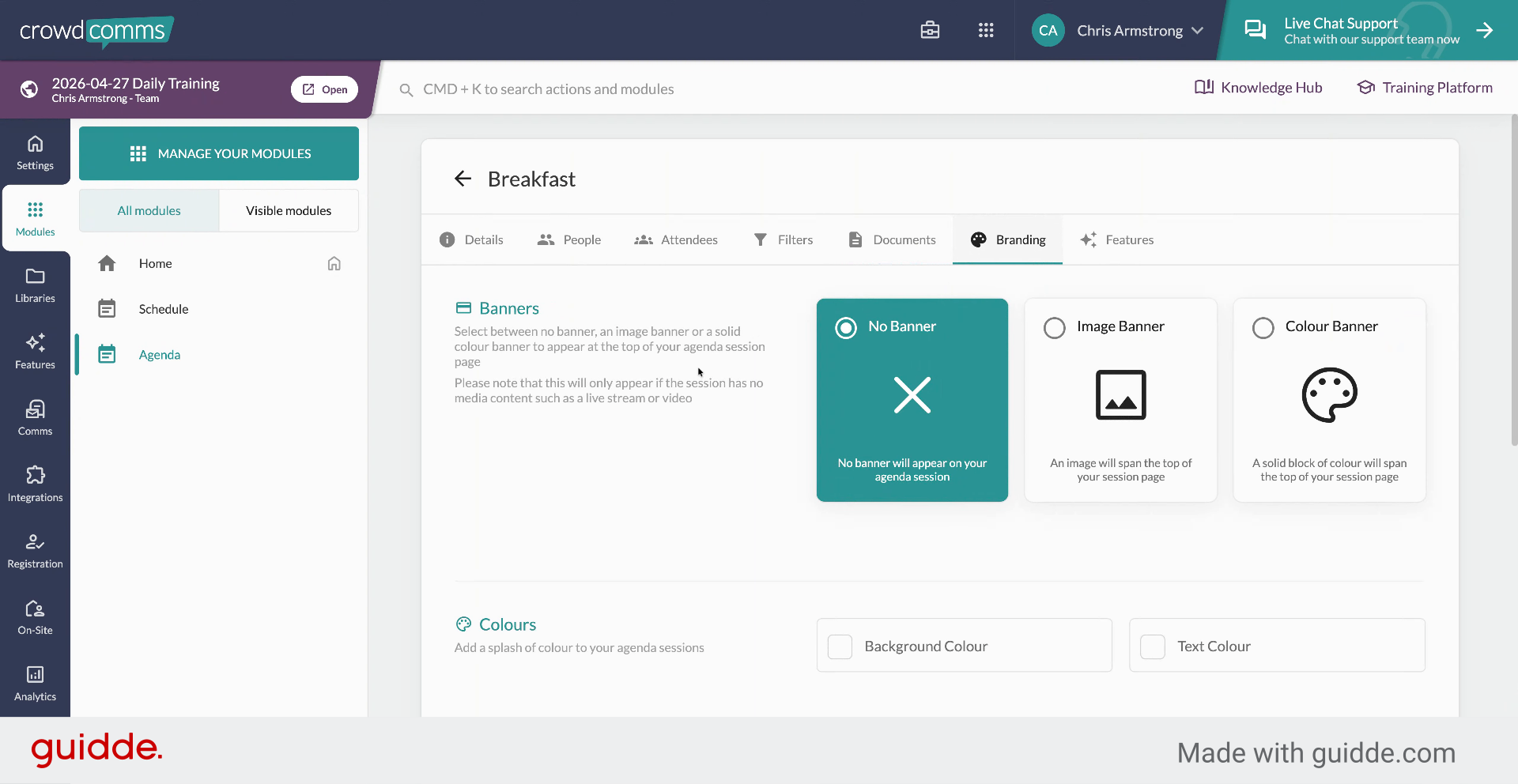
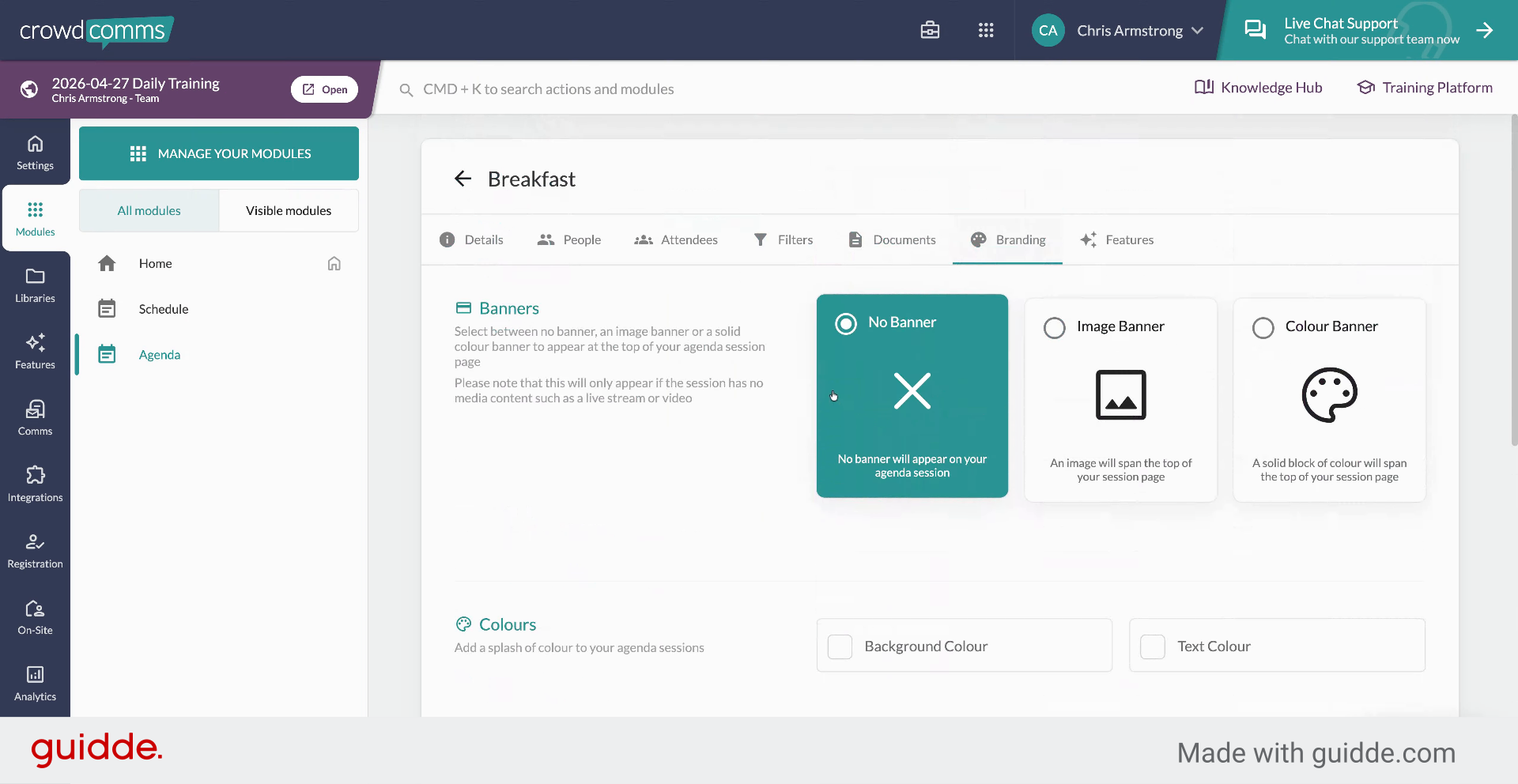
Click the Branding tab to customize session appearance with banners, colours, and sponsored images.
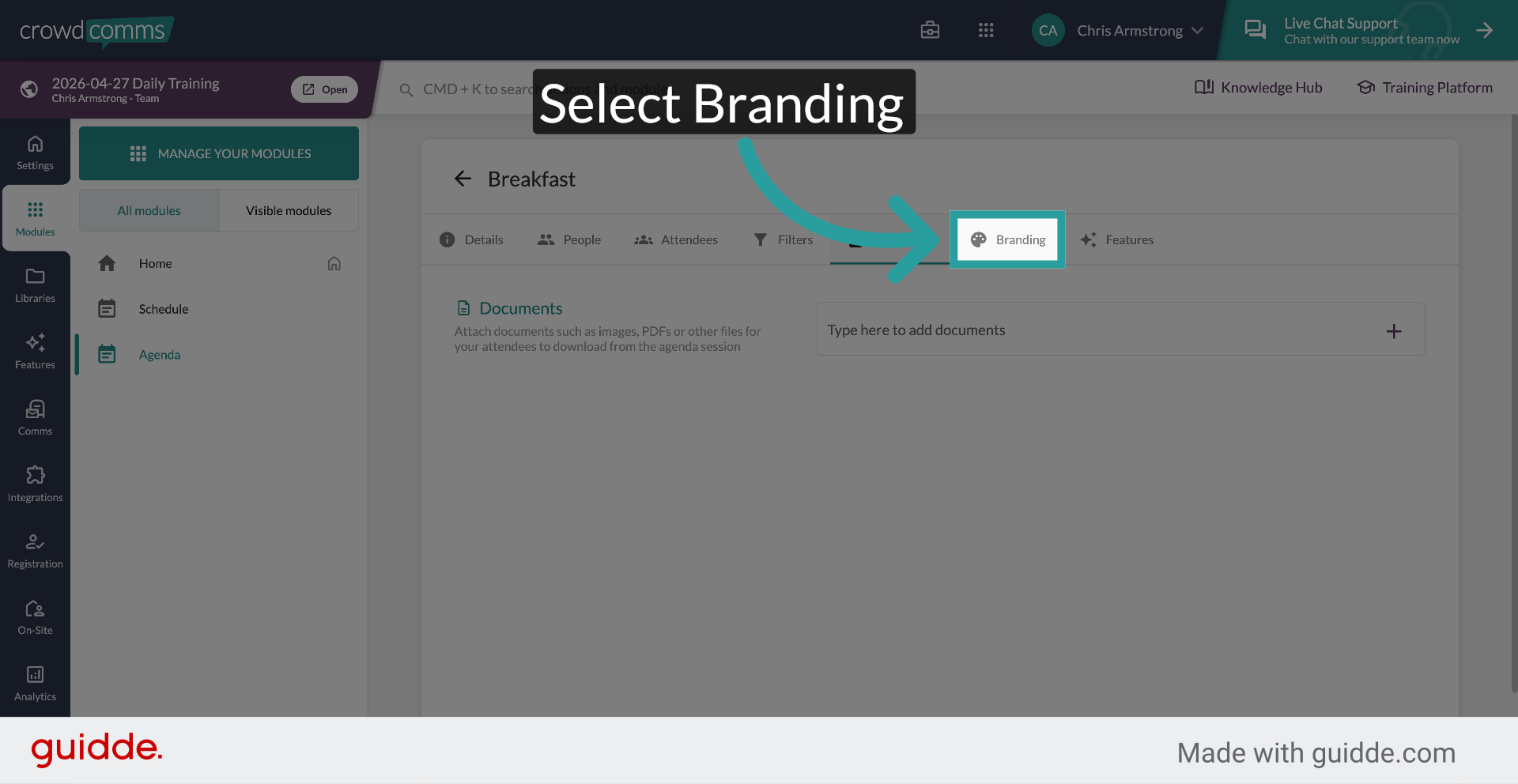
12. Customize Session Branding #
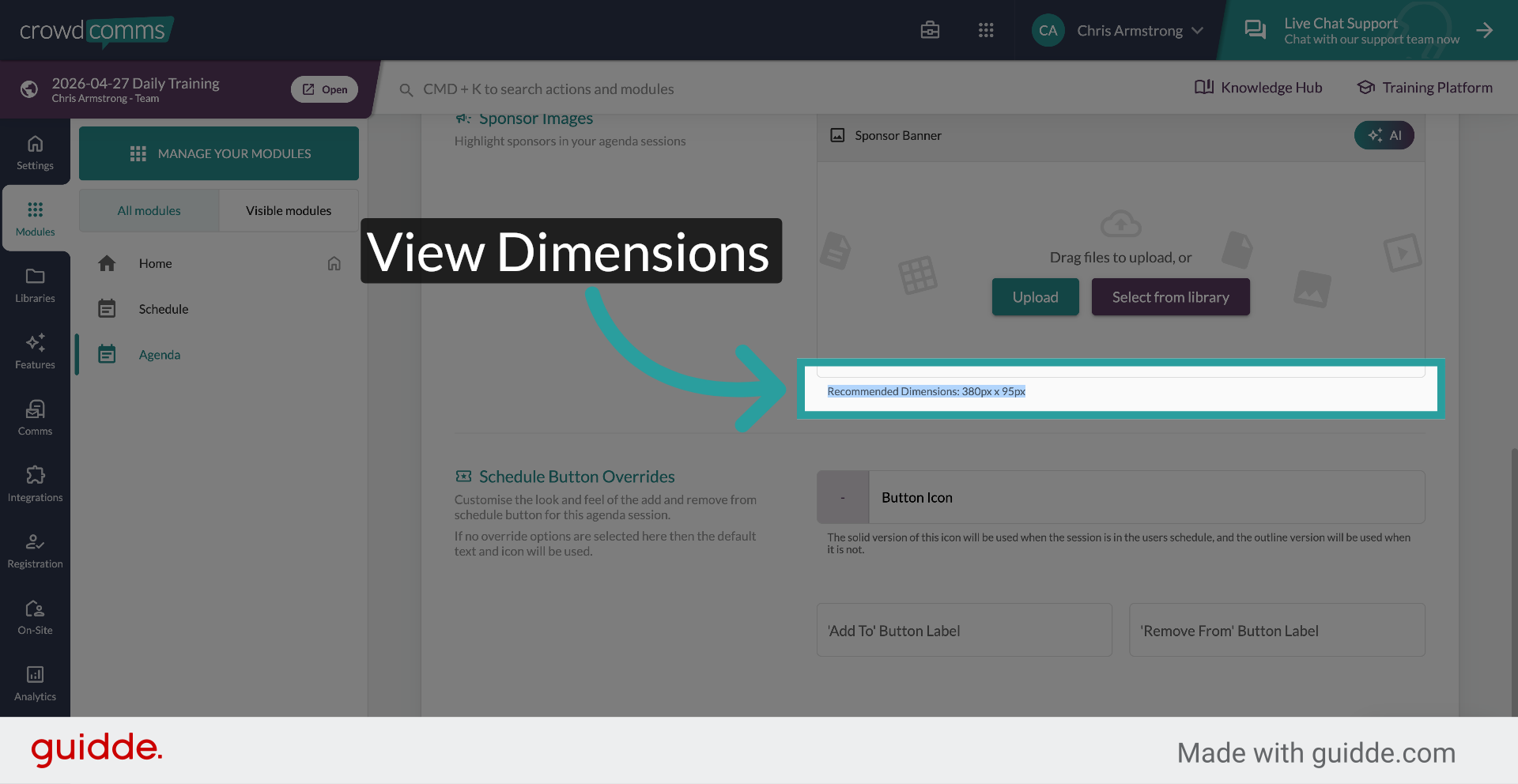
Use branding options to add banners and styling like colours or sponsored images. Recommended image sizes are displayed for guidance.
13. View Recommended Image Dimensions #
Check the recommended dimensions of 380px by 95px for session banners to ensure proper display.
14. Enhance Sessions With Features #
Add interactive features such as live streams, videos on demand, Q&As, surveys, and polls to make sessions engaging. Save your changes when finished.
This article has guided you through creating and customizing agenda sessions in Crowdcomms, including adding details, categorizing, branding, and enhancing sessions with interactive features. For more information, explore related guides on session capacity and schedule management.


