
Overview #
This feature enables users to filter responses collected during registration and export the data in a customisable and flexible format.
By applying filters based on specific registration status, groups or answers, users can refine the dataset to focus on participants who meet precise criteria.
Additionally, users can save their export configurations for future use, simplifying repeated tasks and improving efficiency.
#
Custom Reports #
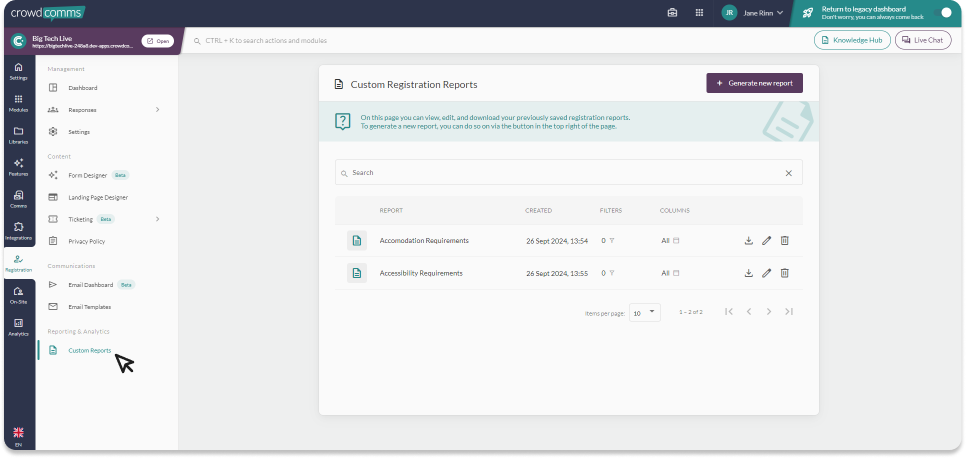
Under the Registration tab, navigate to Reporting & Analytics, and select Custom Reports. To create a new report, click the Generate New Report button in the top-right corner of the screen.
Enter a report name, then select the registrant status and/or group you would like to include. You can further refine the report by filtering specific questions and responses. Next, choose the columns you would like displayed in the report.
Once you are satisfied with your selections, click Save Changes in the bottom-right corner of the screen.
This will navigate you back in to the main Custom Reports page, where you can see your report in the table. From the table, you can export your report to an Excel file by selecting the download icon, or edit by selecting the pencil icon.
#
Ticket Sales Export #
- Ticket Type
- Assigned to Name
- Assigned to Email
- Purchased by Name
- Purchased by Email
- Purchase Date
- Discount Code
- Ticket Price
- Status


