
Overview #
The Email Delivery Rules feature gives administrators precise control over which emails are sent to users based on their actions and characteristics. This gives you greater control over email communications, with more relevant and personalised user messaging.
A dedicated page in the CMS allows admins to create and manage “rules” that determine email delivery. Each rule is built around a trigger – such as when a user completes registration or requests an invoice – along with a set of conditions that define who should receive which email.
How it Works #
Within the registration section of the CMS, navigate to the communications section of the registration menu, and select the Email Delivery Rules tab.
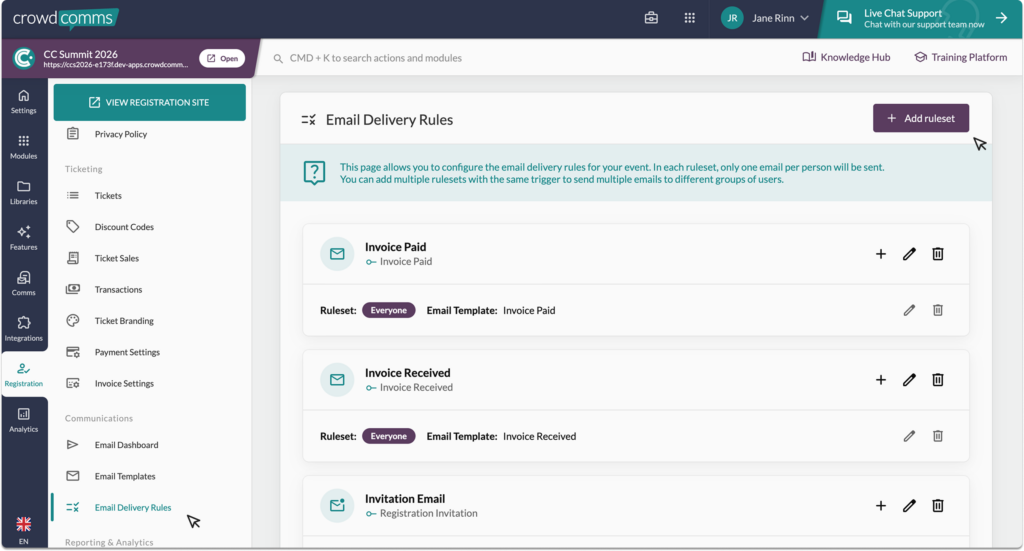
Create a ruleset based on user actions
Each ruleset starts with a trigger ensuring emails are sent at the right moment. Triggers include:
- Registration Complete
- Guest Registration Complete
- Registration Declined
- Request Registration Edit
- Registration Invitation
- Registration Reminder
- Email Verification
- Invoice Received
- Invoice Paid
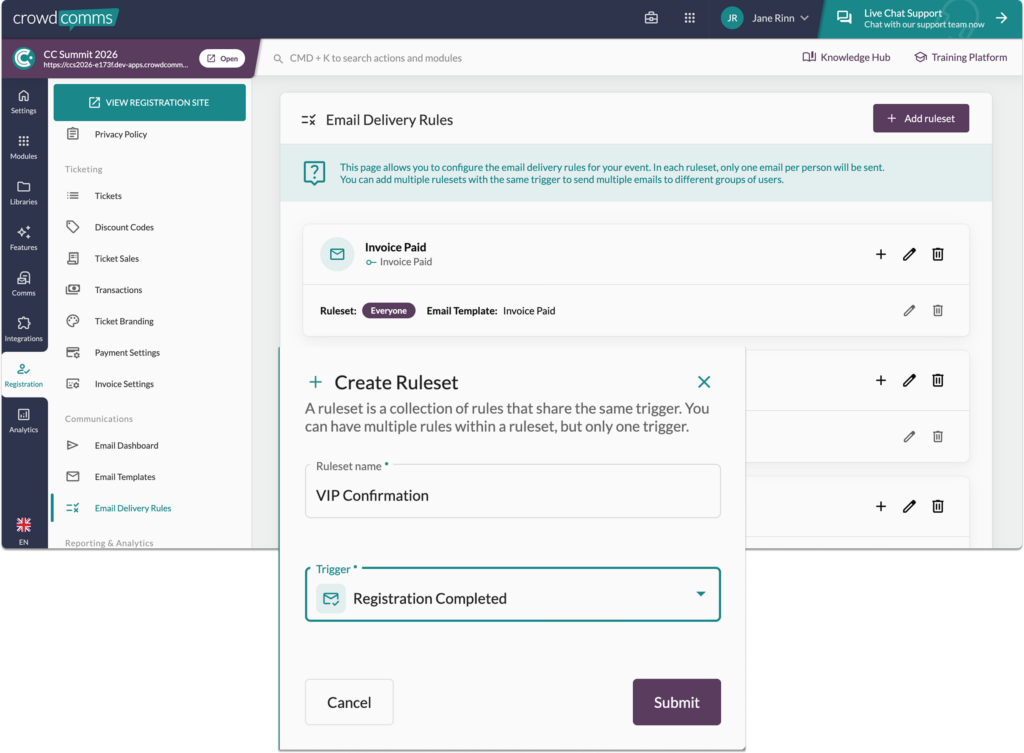
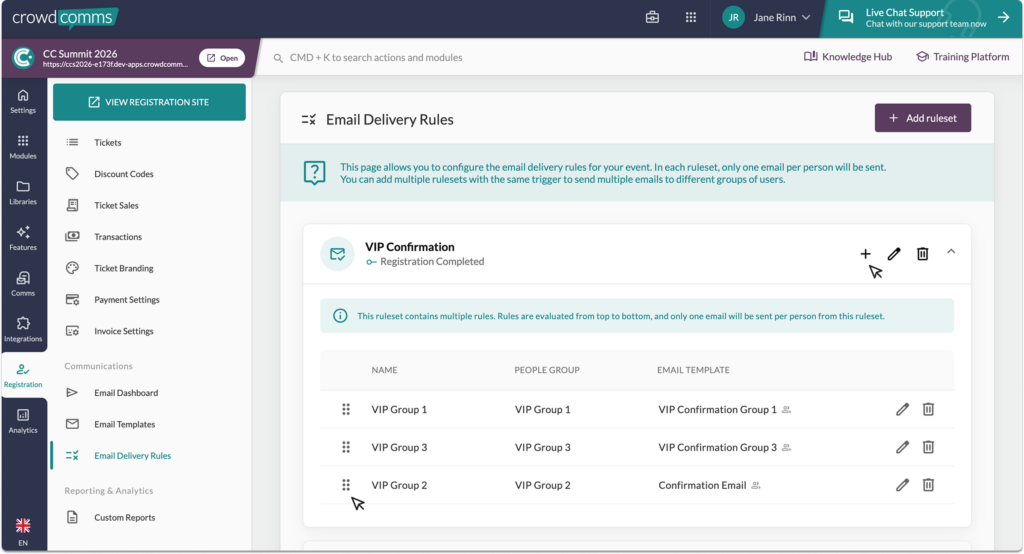
Create a rule to define target conditions
Within each rule, admins can configure conditions, such as assigning specific people to groups to receive different email templates.
Ordered decision logic
Conditions are evaluated from top to bottom inside of a ruleset. The first condition that matches determines which email is sent. You can reorder your rules by using the drag handle on the left side of the rule.
- One email per rule
Only a single email is delivered per rule, ensuring clarity and avoiding duplicate communications. - Default coverage
Default rulesets with rules will be automatically generated when New Emails is enabled to ensure that all users receive an appropriate email. If no other conditions are met, these rules are linked to the default templates. - Disabling a rule
You can stop emails sending on a trigger by deleting the rule or ruleset (if wishing to prevent a specific group). These can always be re-created to work against new requirements.
Please Note #
- This feature is only available when the ‘New Emails’ feature is enabled. You can change this on the registration settings page. You will not be able to import legacy email templates to the New Emails system if you have already designed your templates.
- The first verification email and the initial “Invoice Received” email cannot be customised using rule conditions. However, any subsequent emails of these types can be configured within a ruleset and tailored using rule conditions.
- If an email template is deleted the linked rule is also deleted.


