
Sending Emails to Registered Users #
To send emails to users who have already registered for your event, navigate to the ‘Email Dashboard’ within the ‘Communications’ section of the secondary ‘Registration’ menu. Click on the ‘Send New Email’ button in the top right corner.
A pop-up will appear, allowing you to either draft your email from an existing template or create a new one from scratch. Once done, click ‘Submit’.
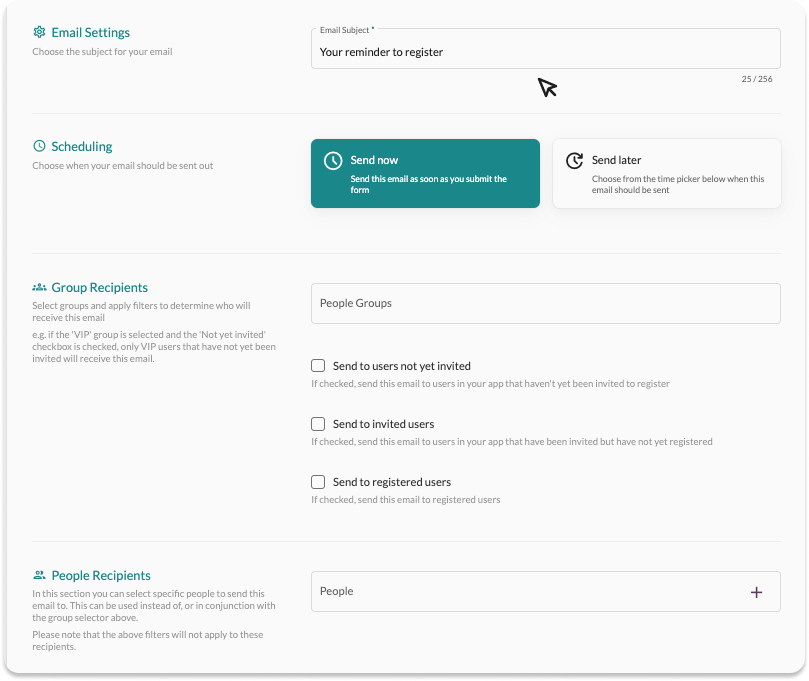
Next, set up the subject of the email, choose the recipients, and schedule when it should be sent.
Selecting Recipients #
In the ‘Recipients’ section, select the group of users from the ‘People Groups’ field that you wish to issue the email to or select registrants individually, you can then tailor this further by adding the registration status you wish to target.
Sending a Blind Carbon Copy or BCC on an Email #
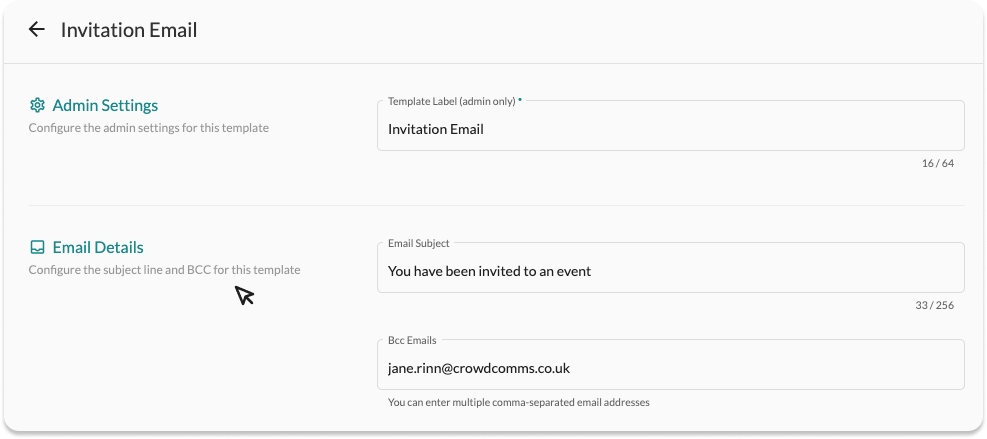
BCC stands for “blind carbon copy” and is an email feature that allows you to send a copy of an email to a recipient without the other recipients seeing their name. To use this feature in an email template, navigate to the email templates dashboard.
Go to the Registration tab, then select Email Templates. Choose the template you wish to send with a BCC, and click either Edit Template or Create New Template. This will open the admin configurations page where you can add your BCC recipients into the input box provided.
- Please note that BCC recipients will not be counted on the emails dashboard.
Sending the Invitation and Reminder Email #
Before sending invitation emails, you must first add the users to the registrant library.
To check whether there are users who haven’t yet been invited, refer to the number shown in the ‘Not Yet Invited’ tile on the Registrants page. If there are users who still need to be invited, simply click on the ‘Send Invite Email’ button to invite them to register.
The same process applies to sending reminder emails. For more information on response management please see here.
Editing the Email Template #
In the ‘Email Builder’ section, click the ‘Launch Email Editor’ button to either edit an existing email template or create a new one. Please refer here to learn how to use the email editor.
For more information on custom email domains please see here.


