
Registrant Dashboard Overview #
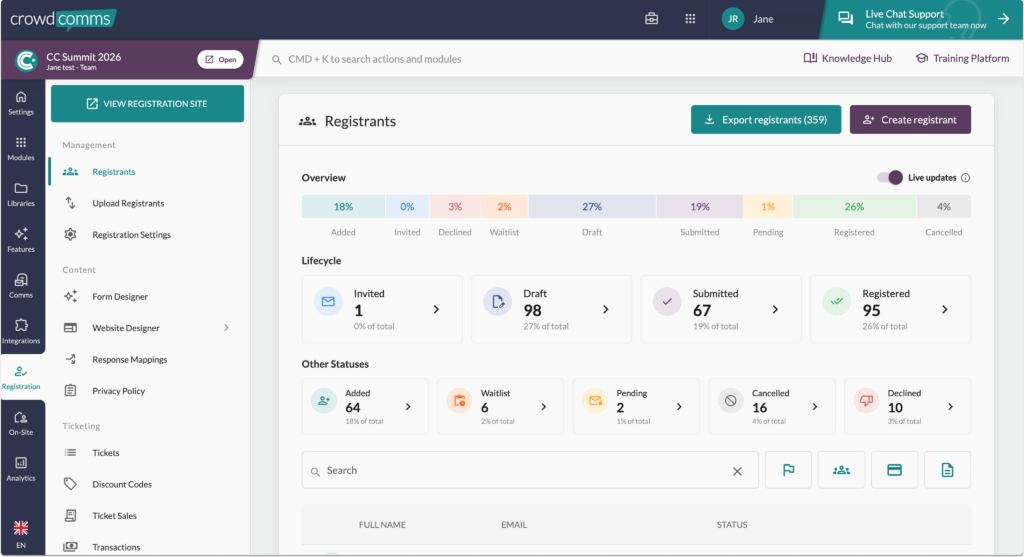
The Registration Dashboard gives you a comprehensive view of your event’s registration progress in real-time.
To access it, navigate to the Registration tab within the event app on your CMS. Under the Management header, you’ll find the Registrants option.
Within the dashboard, you’ll find tiles providing live data for each stage of the registration process:
- Added – The registrant was added to the system
- Invited – The registrant was invited to register
- Declined – The registrant has declined their invitation to register
- Waitlist – If the feature is enabled, the registrant is on the waitlist
- Draft – The registrant has started their registration form but it has not been submitted
- Submitted – The registration form was submitted and is being processed or awaiting payment
- Pending – If enabled their email is pending verification
- Registered – The registrant has successfully completed the registration
- Cancelled – The registration was cancelled by the registrant or admin
You can click on each of these stats to automatically filter the registrant table below.
Please note: tiles for each status will only be displayed when that status occurs.
Below these tiles, there is a table of everyone in your Registrant Library. Here you can search for keywords and filter by registration status, payment status, group and response. If you export the table, the selected filters will be respected in the export.
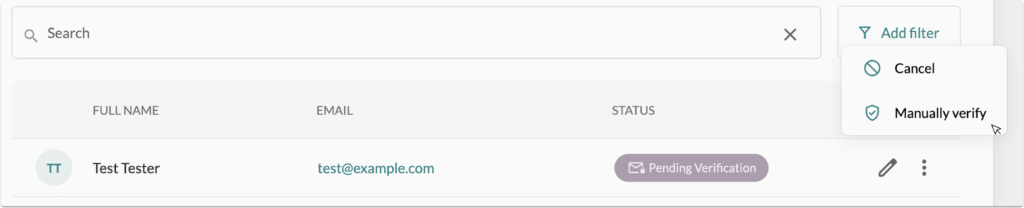
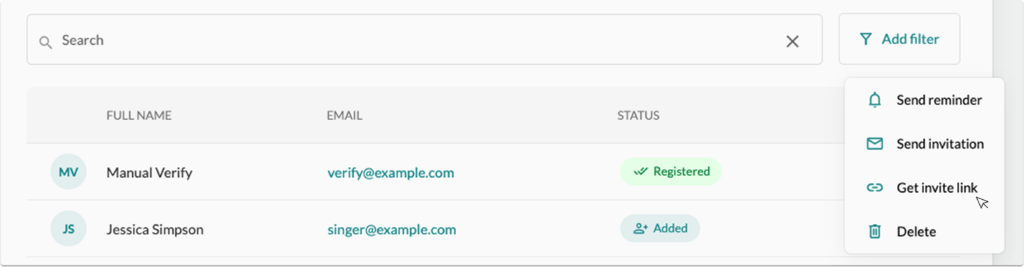
Within the table, clicking on the three ellipses next to a person gives you a selection of actions. Which actions display in the pop up menu will be dependent on where the person is in their registration journey.
In this pop up menu, you will be able to manually verify a registrant’s email, send an invitation, send a reminder, generate an invite link, send a confirmation email, manually register them using ‘force submit’ option, or cancel a registration.
The Force Submit action will mark the person as registered without requiring them to complete the form. It will also automatically create a profile for them in the People Library, removing the need for any further registration steps.
#
Registrant Journey #
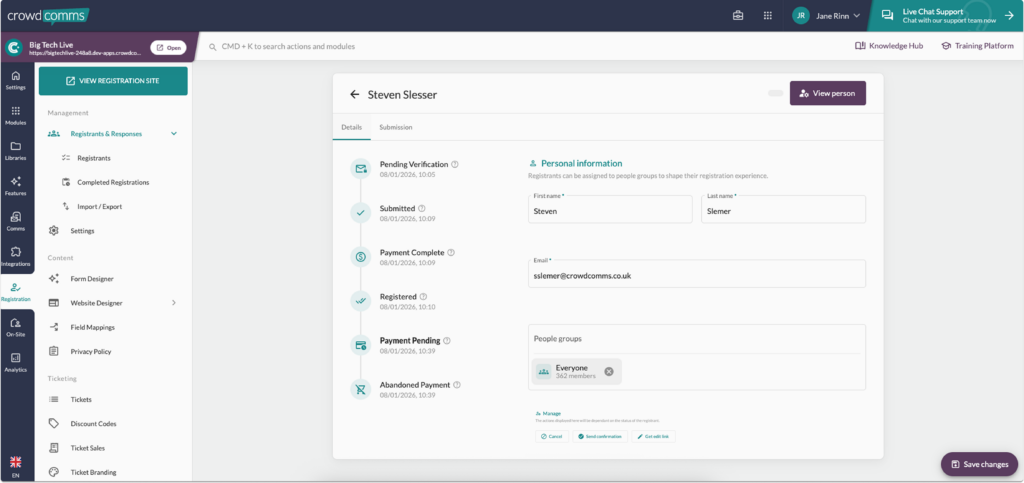
You can view a registrant’s registration journey or edit a registrant’s details by clicking the pencil icon next to their name. This will open the registrant detail view where you can review their personal information, see their registration submission, and see a timeline of their registration journey.
Within the details page, you will also see a ‘Manage’ section. Depending on where they are in their registration journey, the option within this section will vary. In this section, you can send an invitation or reminder email, generate edit links to their submission, re-issue a confirmation email or cancel their registration.
Please Note :
- Registered Registrant: When a Registrant status reaches “Registered”, a corresponding person in the people library is created with all of the details mapped from that registrant. If a registered registrant is updated in any way, all registrant details will be copied over to the corresponding person in the people library.
- Caution: If a person logs into the event app and updates their profile, only their people library person gets updated with that data, it won’t be copied to the registrant also, so if later registrant edits are made they could overwrite changes a user has made to the people library person. It is safer to make changes directly to their people library person and avoid editing a registered registrant.
- Cancelling a Registrant: If a previously registered registrant with a corresponding people library person is cancelled, their people library person will be deleted. It is possible to undo the cancellation if this was a mistake, which will in turn re-create that person in the people library from the registrant data.
- Caution: If the person related to this registrant made changes to their profile in the event app after they registered, these will be lost when they’re cancelled.
- If you cancel someone with tickets their tickets will be marked as cancelled on the sales page meaning that capacity will reopen or increase by the number of cancelled tickets. Similarly all mapping in questions answered at registration will also update to reflect the cancellation.
- No confirmation of cancellation will be issued to the cancelled delegate from the CMS, the event organiser will need to confirm cancellation with the delegate seperately, if required.
- Cancelling a lead registrant with guests: When deleting a cancelled Lead registrant please note this action will also delete your guests in registration, but not in the people library.
- Refunds will not be automatically generated via the CMS and need to be handled via your payment provider account.
- Deleting a Registrant: It is possible to delete a cancelled registrant from the registration dashboard, this will also delete their information from the people library.
- Caution: This action cannot be undone.


