
Overview #
Effortlessly connect your event data from Oxford Abstract to the CrowdComms CMS with our integration tool.
Now in Beta, this integration enables smooth, automatic synchronisation of data from Oxford Abstracts, eliminating the need for manual entry.
By linking Oxford Abstracts, you can streamline abstract management, keeping your records accurate and up-to-date across both systems.
To access this feature, please contact your Account Manager to have it enabled.
To configure your integration within the CMS, you will first need to retrieve an API Key and Event ID from Oxford Abstracts.
You can find information on retrieving an API Key here.
You can locate the Event ID either on the event listing page, or within the event dashboard.
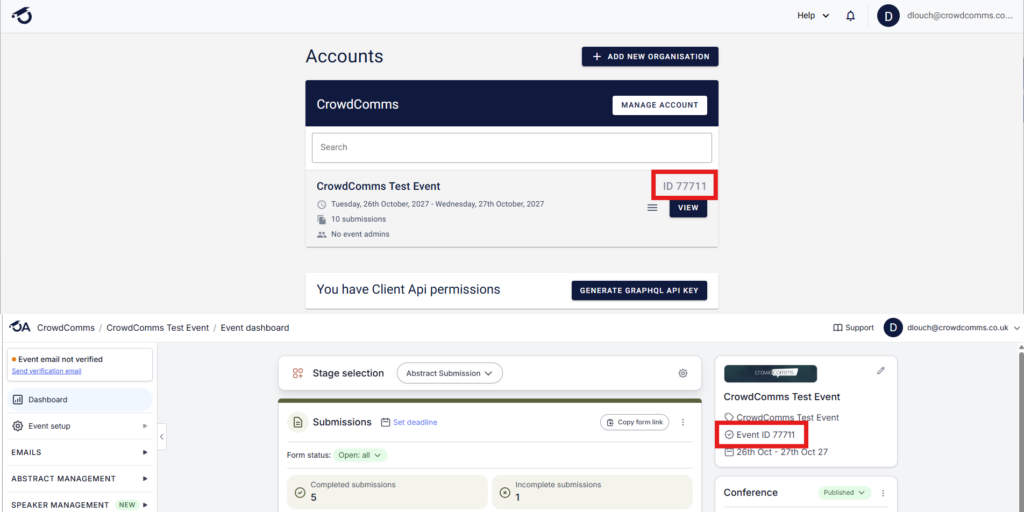
CMS Configuration #
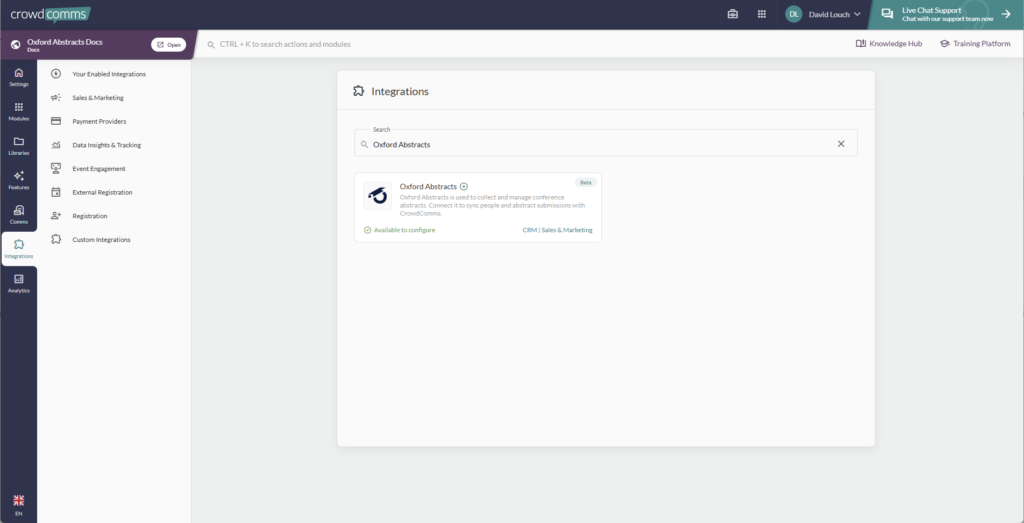
- Navigate to the CMS and select your event App. Within the app, navigate to the left side menu, and select the Integrations tab. Within the Integrations page, select the Oxford Abstracts tile.
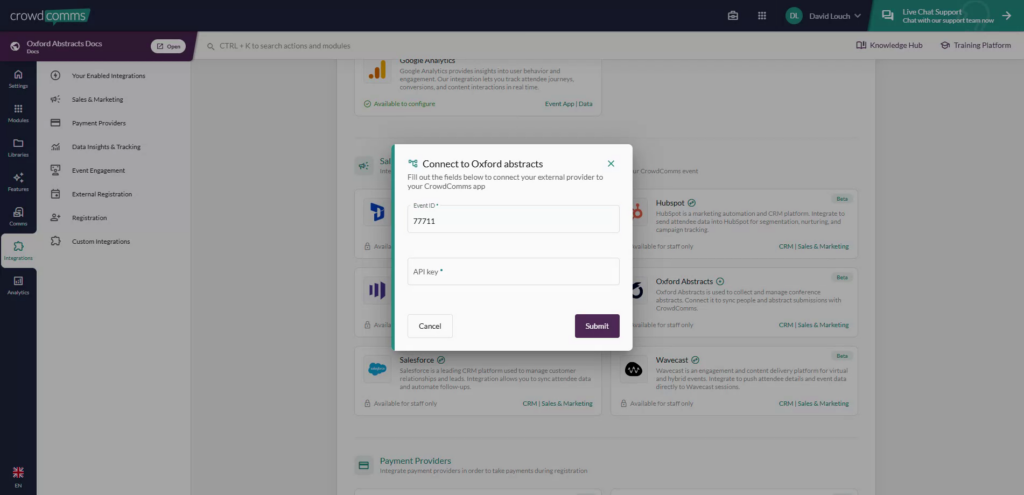
- In the pop-up modal, fill in the form with the API key and Event ID which you retrieved in the previous step.
- Once you have filled in those details, click Submit, and you will be navigated to the Account Details tab for your integration.
- If you have, or plan to have more than 1 Abstracts module within the CrowdComms platform, you can enter the ID of the Abstracts module you wish to sync to in the Abstracts Module ID box.
Configuring Your Field Mappings #
You are now ready to begin mapping your fields between Oxford Abstracts and the CMS. A number of default fields will be added for you, when you add an entity.
You can read more about field mappings here: Integration Entity Mapping.
When you have completed field mappings, you can return to the Account Details tab to enable the integration.
Run Logs #
Run Logs are available in the CMS under your integration’s configuration settings. To access them, go to the Integrations tab in the left-hand menu.
Select your integration, and if it’s set up, you’ll be able to navigate to Run Logs.
The Run Logs will show you information on the latest sync of the integration. You can view how many entities were created, how many entities were updated, and the time and date of each sync or ‘run’ of your integrations.
Please Note #
- Only ‘Accepted’ abstracts will be synced. If you have ‘Permission to Publish’ set, only abstracts with permission will be synced.
- The integration will run every 30 minutes.
- You can sync a single event ID to a single abstracts module. Multiple events or multiple modules are unsupported.
Should you need any assistance with this integration, please don’t hesitate to reach out to a member of the support team on Live Chat available via the CMS.


