Configuring Your Field Mappings #
You are now ready to begin mapping your fields between your external provider and the CrowdComms CMS.
- Navigate to the Target Entities tab.
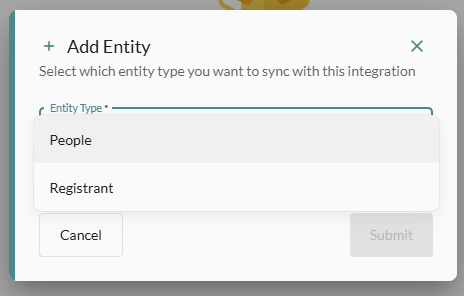
- Click the Add Entity button and choose which entity type you wish to sync. Currently we support People and Registrants.
People Entities #
A person entity syncs with the people library in your event. This is useful if you have already collected registration data, and wish to add the people directly to the people library for your event.
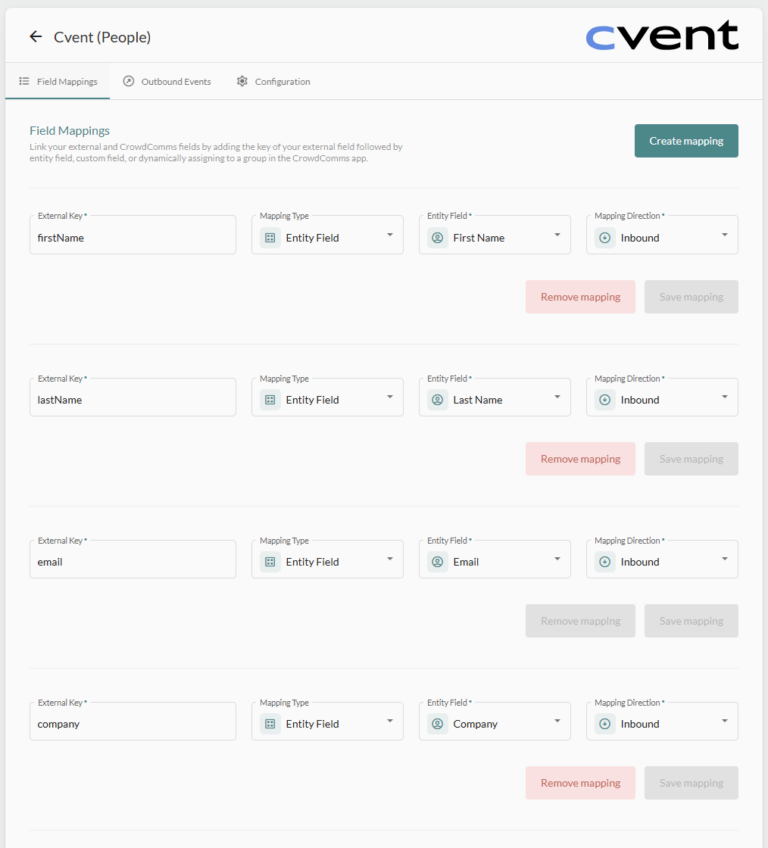
After submitting the form, you will be taken to the Field Mappings page. This will have some default fields already mapped for you. You can map further fields using the Create Mapping button at the top of the page. You can also remove or amend fields on this page using the appropriate row level buttons.
People Field Mapping #
If you wish to create a new mapping, click Create Mapping at the top of the page. In the pop-up dialog, enter the required information:
- External Key – This is the key of the field in the external system you wish to map.
- Mapping Type – You can choose between Entity Field, Custom Field or Dynamic Group
- Entity Field – a standard field on the person within CrowdComms, examples are First Name, Last Name, Company, Job Title etc.
- Custom Field – these are fields that can be added to the person, these are created from within the people library.
- Dynamic Group – can be used to place people into groups based on a value in your data. For example, you could have a Status value, and people would be placed into groups based on this status.
- Mapping Direction – Which way do you want your data to flow?
- Inbound – Data will flow inbound from your provider to CrowdComms.
- Outbound – Data will flow from CrowdComms to your provider.
- 2-way – Keep the data in sync between CrowdComms and your external provider.
People Outbound Events #
Outbound events are currently exclusive to People entities. Using outbound events, you can trigger an action or set a value in your external provider when something happens in the CrowdComms system.
If you wish to create a new Outbound Event, click Create Mapping at the top of the page. In the pop-up dialog, enter the required information:
- Outbound Event Type
- Attendance Tracked – Update a field in your external provider when a delegate checks in to a session.
- Badge Printed – Update a field in your external provider when a delegate prints a badge
- Mapping Type
- Field – Map a value to a field in your external provider
- Action – Trigger an action in your external provider
- For Field mappings you will need to input the field key that you wish to update in the external provider. You will also need to choose the field type:
- Boolean the remote field is a true/false field
- Date the remote field is a date field
- For Action mappings you can currently only choose check in.
Registrant Entities #
A registrant entity syncs with the registration library in your event. This is useful if you have a list of people in your external provider that you would like to register using the CrowdComms registration system.
After submitting the form, you will be taken to the Field Mappings page. This will have some default fields already mapped for you. You can map further fields using the Create Mapping button at the top of the page. You can also remove or amend fields on this page using the appropriate row level buttons.
Registrant Field Mapping #
If you wish to create a new mapping, click Create Mapping at the top of the page. In the pop-up dialog, enter the required information:
- External Key – This is the key of the field in the external system you wish to map.
- Mapping Type – You can choose between Entity Field, Custom Field or Dynamic Group
- Entity Field – a standard field on the registrant within CrowdComms, examples are First Name, Last Name, Company, Job Title etc
- Custom Field – these are fields that can be added to the person, these are created from within the people library
- Dynamic Group – can be used to place people into groups based on a value in your data, for example, you could have a Status value, the registrant would be placed into groups based on this status.
- Mapping Direction – Which way do you want your data to flow?
- Inbound – Data will flow inbound from your provider to CrowdComms
- Outbound – Data will flow from CrowdComms to your provider
- 2-way – Keep the data in sync between CrowdComms and your external provider


