
Overview #
This feature allows lead registrants to purchase multiple tickets in a single registration without needing to provide guest names or email addresses upfront.
It’s designed for group, corporate, or team registrations where attendee details may not be available at the time of booking.
Lead registrants can secure the required number of tickets, complete payment, and manage capacity immediately, then return later to assign tickets and add guest details as they become available.
Guest tickets remain unassigned until updated and do not create attendee records until information is provided.
The result is a faster, more flexible registration experience with accurate capacity tracking and clear reporting, giving you greater control over group registrations while reducing friction for your attendees.
Enable Guest Linked Tickets #
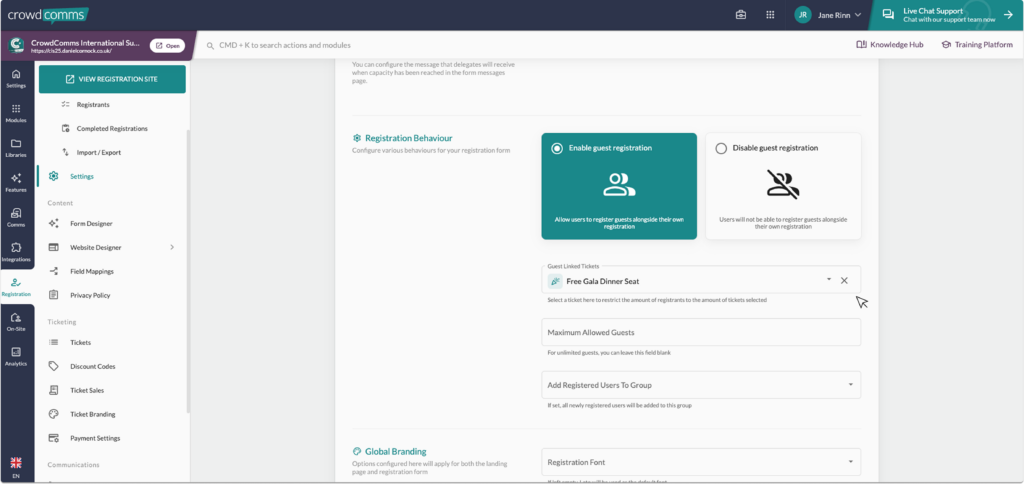
- Within the registration tab on the CMS, go to the Settings page.
- Scroll to Registration Behaviour and enable Guest Registration. Below this you will see Guest Linked Tickets.
- Select the ticket(s) that you wish to allow guests (e.g. “Free Gala Dinner Seat”).
- This enables registrants to add guests when that ticket is included.
Setting Up Ticket Bundles #
- To set up ticket bundles on the registration form, navigate to the registration tab and open the Form Designer, and ensure your basic tickets are already created. For more information on how to do this please see here.
- Add a section to your form to hold the tickets, then add the single or multi ticket selection field to your section. Open the configuration settings, and add your existing tickets to the section, setting the pre-selected quantity field to the desired amount as you do so.
- Once you are happy with your changes, click save.
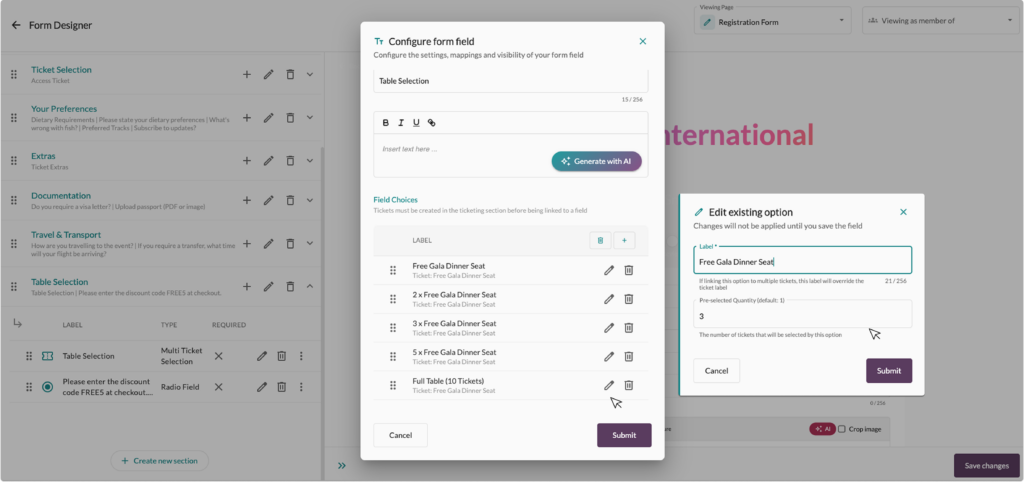
This configuration allows registrants to select multiple tickets on their registration form and assign them to guests without needing to complete the guest registration form, or leave them blank if their details are not known at the time of registration.
Lead registrants can return to edit their registration and add guest names at a later date through the edit registration link in their confirmation email.
Viewing Tickets in the CMS #
Check Completed Registrations #
- Open the CMS.
- Go to Completed Registrations.
- Select the registrant you wish to review, click the pencil icon, and select the submissions tab.
- Confirm that both the lead registrant and guests appear correctly.
Review Ticket Sales #
- Navigate to Ticket Sales.
- You will see:
Tickets purchased by the lead registrant
Tickets assigned to different individuals (lead + guests)
Export Ticket Sales #
- Export the ticket sales report.
- The export will show:
All tickets purchased by the lead registrant
Individual ticket assignments to guests


