
We’ve recently improved the way you invite people to register, making the process clearer, simpler, and more effective.
Previously, inviting a registrant required first creating a People Library profile, which automatically generated a linked registrant in the background. That registrant could then be invited through the Registration Dashboard, and the linked People Library profile was updated as the registrant moved through their registration journey.
With our latest updates, you can now create and invite a registrant directly from the Registration Dashboard, no People Library profile required upfront. A People Library profile is automatically created once the registrant completes their journey, confirming their attendance.
This change introduces a clear distinction between:
- People invited to register, and
- People who have confirmed their attendance
As a result, it’s now easier to manage your event and ensure the right communications are sent to the right audiences at the right time.
Uploading Registrants #
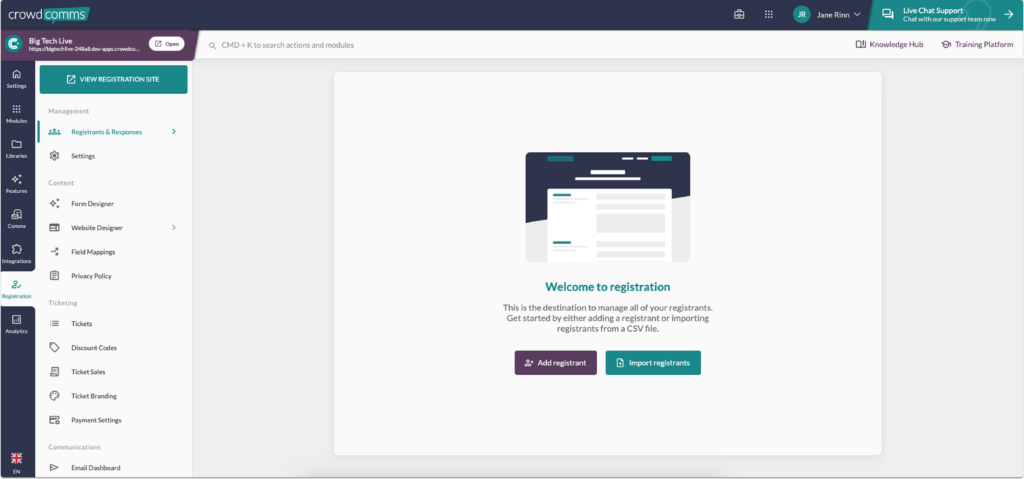
To get started you need to upload your registration audience to the Registration Dashboard, navigate to your app then to the registration tab, in the secondary menu select Registrants & Responses. If you have no registrant data added yet you will be prompted to upload data as shown above either by creating registrants individually on the Registrant table or via a spreadsheet upload. You can also navigate to Import/Export in the secondary menu to upload registrants directly into the existing dashboard.
Individual registrants can be created with the “Create registrant” button. After the basic form is completed, the registrant is created with the “Added” status. If you choose to import registrants, the import method can be used to both create new registrants and update existing registrants. Only registrants with the following statuses can be updated:
- Added
- Invited
- Pending verification
Please Note #
Importing new registrants #
- The ID field should be blank
- The fields you populate on the spreadsheet will be used as the prefill information for the registrant when they proceed to registration
- If the email address for the registrant you’re trying to import already exists in either the people or registrant library, you will not be able to import them as a new registrant. If they exist in the registrant library you should instead be updating the existing registrant.
Importing updates to existing registrants #
- You can use the registrant export as a starting point for this
- The ID field should be populated with the ID of the registrant you’re trying to change from the export
- The fields you change on the spreadsheet will update their latest submission
Once you have added your registrants you will be able to see their details and their current registration status on the registration dashboard.
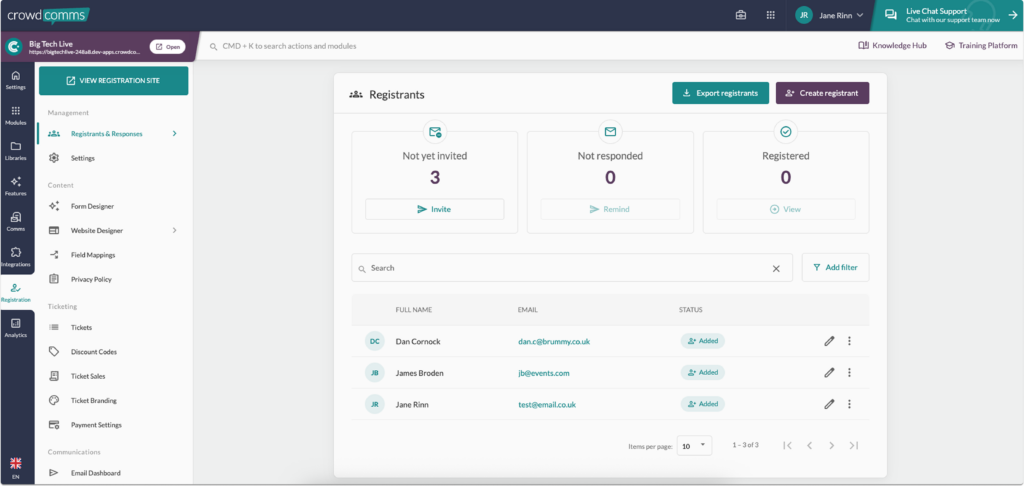
To edit a registrant’s details, simply click the pencil icon. From the registrant details view, you can track the individual’s progress as they move through the registration journey.
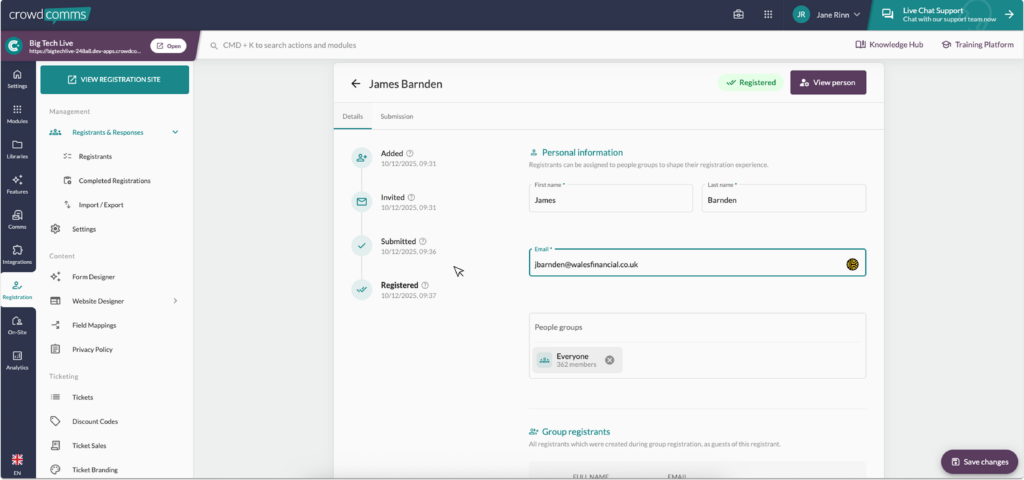
For more information regarding managing responses please see here.


